
The Sign-up Sheets plugin sends email for confirmation to a sign-up, reminders (Pro version only), as well as other purposes. If you find some or all of your emails are not reaching their destination you can try the troubleshooting steps below.
Note that the Sign-up Sheets plugin uses the built-in WordPress functionality for sending mail so is not specific to the Sign-up Sheets plugin. Issues found typically indicate could be an issue sending from the server, an issue with the recipient receiving the message at their mail server, or the message being directed to the recipient’s SPAM box. There are a number of things that can go wrong throughout that process so it can be difficult to track down and resolve. You may be able to contact your hosting provider to help debug further. Below are some troubleshooting options to start with.
- Troubleshooting Guide
- Use SUS Email Test Tool
- Test Native WordPress Emails
- Use Mail Tester
- Use Email Delivery Service
- Install an SMTP Plugin
- Trace Email
- Check SPAM Mailbox
- Mail Logging
- Check Your From Address
Troubleshooting Guide
- First, test if any emails send at all
Send a test email from your WordPress site using the SUS Email Test Tool, a native WP email like the lost password form or a plugin like WP Mail Logging.- If the test email it sent and arrives:
→ The site can send mail. Jump to Step 5 “Use Mail Tester - If the test email doesn’t send or never arrives:
→ Continue to Step 2.
- If the test email it sent and arrives:
- Check if WordPress is sending the email in the first place
Do this by setting up logging of all email sent from your site (if you don’t already have this), try triggering an email and check if it was logged. You can use this throughout the rest of your troubleshooting as well.- If you don’t see it logged:
→ The problem may be with your server configuration so you can try contacting your hosting provider or web developer to track it down and debug further. - If you see it logged:
→ Continue to Step 3.
- If you don’t see it logged:
- Check what “From” email address you have configured
Many email delivery issues happen because the “From” email address configured doesn’t match your verified sending domain. Mail servers use this to verify that the message is authorized to send from your domain. If it doesn’t line up, the message often gets rejected or marked as SPAM. - Setup an Email Delivery Service or SMTP Plugin (optional)
Then send another test email.- If it still fails:
→ Check your mail logging (from Step 2) or through this new service to see if you are seeing any changes or errors.
→ Then continue to Step 5.
- If it still fails:
- Use Mail Tester
Test the deliverability of your emails using Mail Tester or similar tool. This is an invaluable test since it will help identify persnickety issues such as hard-to-spot DNS, SPF, DKIM, DMARC, (all those fun acronyms! 😵💫) and even content-based spam triggers that can affect whether your messages actually land in the inbox.- Sometimes the issues it reports can be solved by some of the previous recommendations as well such as Step 3 and Step 4
Use SUS Email Test Tool
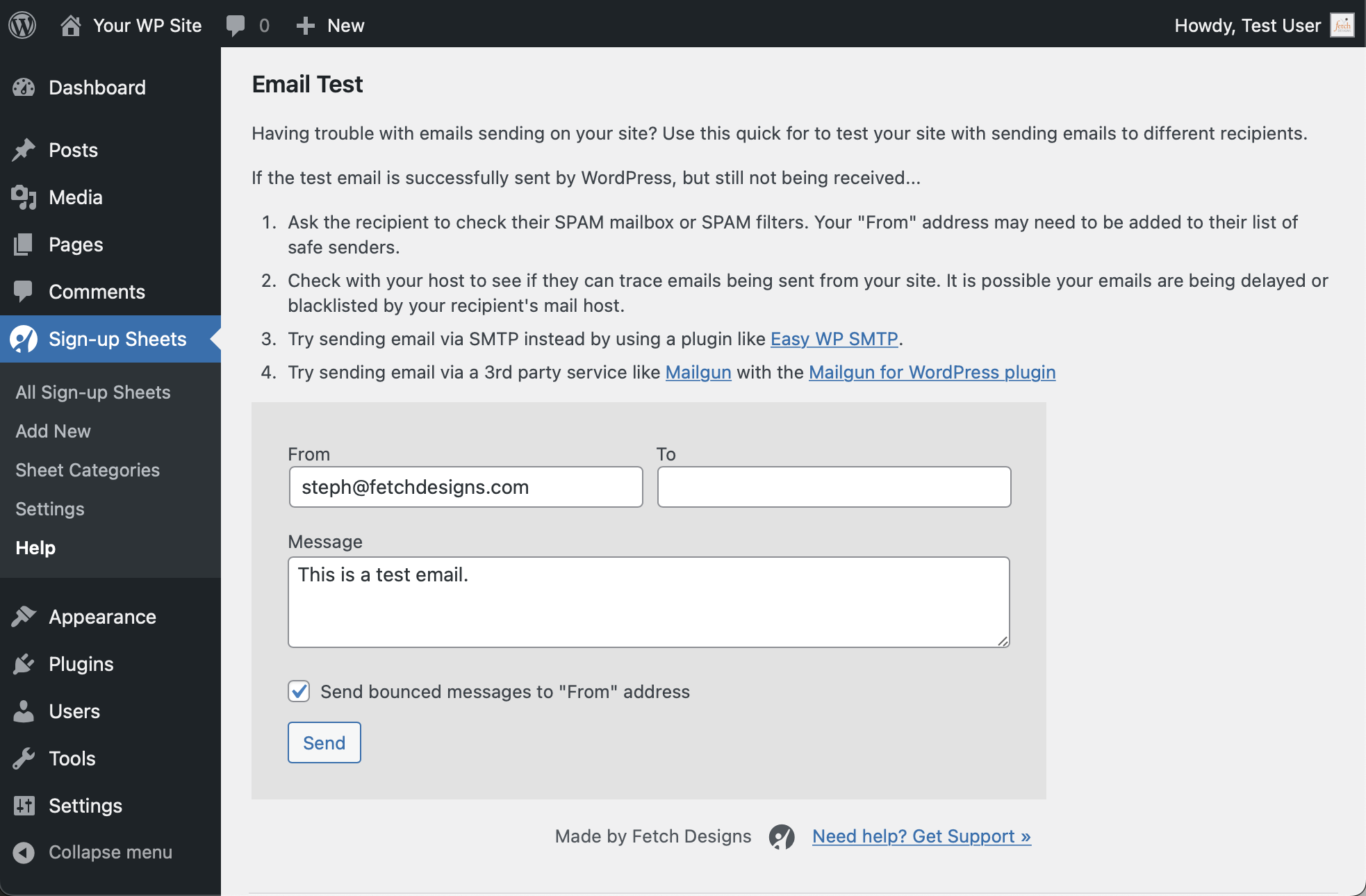
The Sign-up Sheets plugin includes an Email Test Tool which you can find in the admin under Sign-up Sheets > Help. This is a simple form that let’s you specifically send an email fro your site to the recipient of your choice and see if it arrives.
Test Native WordPress Emails
If you aren’t getting Sign-up Sheet confirmation emails or the email through the Mail Tester (noted above), you can see if WordPress itself is able to send it’s own emails. The easiest to trigger email within native WordPress is the password reset.
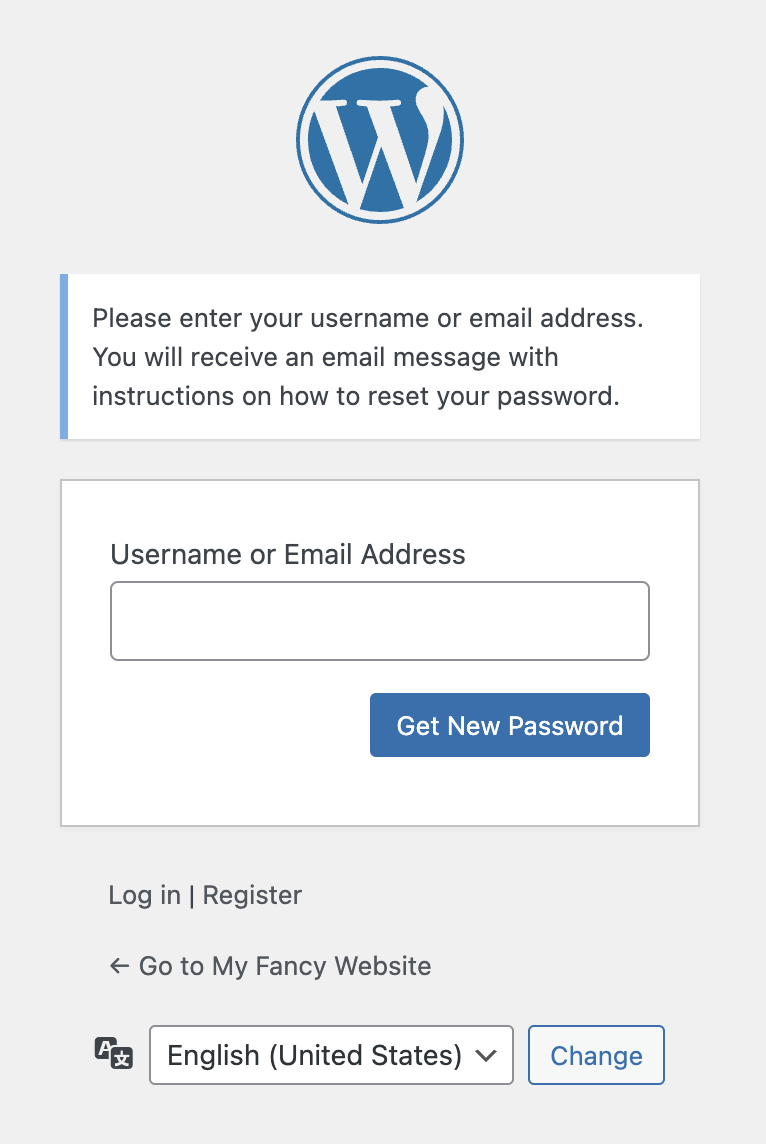
- Go to the admin login form
- Click the “Lost your password?” link
- Enter your user info and the “Get New Password” button
- Check your email and see if you get the message.
- If you do not get the email, try running the same test after disabling the Sign-up Sheets plugin to see if anything is fixed after the plugin is disabled by following the next steps.
- Go to the “Plugins” page in the main admin menu
- Click the “Deactivate” link on the Sign-up Sheets plugin (both Pro and the main plugin if you have them installed)
- Repeat steps 1-4 and see if you still have an issue.
If you only receive the email after disabling the plugin, please contact us to report the issue to us and we can debug further. If still didn’t get the email, you can move on to some of the other testing methods on this page. Alternatively, contacting your hosting company can also be a good resource as they can help debug the issue further.
Use Mail Tester
If your emails are reaching some, but not all of the recipients it could mean they are getting flagged as SPAM by some mail servers. Mail-Tester.com is a website that will check that for you. For free they offer a limited number of checks within day without paying for their service.
How to use Mail-Tester.com
- Go to Mail-Tester.com
- Copy the email displayed on the site which will look something like… [email protected]
- Leaving the previous window open, go to your on your website’s sign-up sheet, and submit a test sign-up using the email provided in the previous step.
- Go back to the Mail-Tester.com window and click the “Check your score” button. This may process for a bit while it checks for the email your site sent to it.
- Once processing is complete it will display the results. Review each item and resolve high priority items. This may also be useful to provide to your hosting company or whoever is in charge of sending your emails
Use Email Delivery Service
Often times when websites are setup the default email delivery setup is used through the same hosting service your site is on. However, this is not always typically the best setup and using a specific service dedicated to email delivery can be much more reliable.
You can use a service like MailGun.com (and install the MailGun WordPress Plugin). They offer a free service for up to 10,000 emails per month which is typically more than enough for small business and organizations depending on the quantity of mail you send. There are other similar services such as Transactional Emails by MailChimp, SendGrid, Send in Blue, and Postmark.
Install an SMTP Plugin
Instead of using a separate email delivery services, you could also install an SMTP plugin like Easy WP SMTP which allows you to use an email account to send the email through. For example, if you are sending “From” an @gmail.com address, setup your Gmail address in the SMTP plugin. This is often a solution for From Address Issues.
Trace Email
Check with your hosting company to see if they can trace emails being sent from your site. It is possible your emails are being delayed or blacklisted by your recipient’s mail host and they may be able to debug this from their end.
Check SPAM Mailbox
Ask the recipient to check their SPAM mailbox or SPAM filters. Your “From” address may need to be added to their list of safe senders. This is a temporary measure, though, and would indicate your messages are being flagged as SPAM which can be debugged further using Mail-Tester.com as detailed earlier in this article.
Mail Logging
Depending on how your email is setup, you may have access to records of each email that was sent from your site. You can use this to determine if the email was attempted to be processed at all so you know it at least tried to get sent even if a recipients email blocked it for some reason.
If you are sending emails using your hosting server, you can check with your hosting company and they may be able to point you in the right direction for any tools available through that.
If you are using an Email Delivery Service (such as Mail Gun or another similar service) they typically offer logs to see all messages that were sent and if there were errors with any of them.
Alternatively, since you are using WordPress, you can also install a WordPress mail logging plugin such as WP Mail Logging. This will allow you to see any email that was processed through WordPress’ built-in mail sending function (which is what the Sign-up Sheets plugin uses to send emails).
Check Your From Address
Many email delivery issues happen because the “From” email address configured in your site doesn’t match your verified sending domain. Mail servers use this to verify that the message is authorized to send from your domain — if it doesn’t line up, the message often gets rejected or marked as spam.
Let’s say your site is example.com, and your plugin sends messages from: [email protected]
✅ That’s fine — both addresses are under the same domain you control.
But if your site is configured with a From address of [email protected]
🚫 That’s a problem if Gmail hasn’t authorized your server to send on its behalf, so most mail providers will block or junk those messages.
If you use Mailgun, SendGrid, or another service, use the verified domain from that service (e.g. @mg.example.com).
Avoid free email domains like @gmail.com, @yahoo.com, or @outlook.com in the “From” field — they almost always fail authentication unless you specifically setup that address though an SMTP plugin.